Nurse Signtures Dashboard
Nurse Signatures Dashboard
This dashboard can be used for Nurses to sign off desired compliant shifts singularly or in bulk. In addition, you can send a copy of the shift and sign off to the client’s files for viewing.
Enabling Nurse Signature Dashboard - Menu>Settings>Site Settings
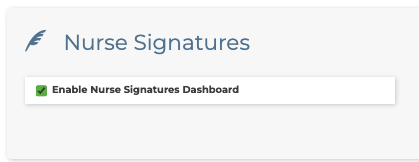
Accessing the dashboard
Once enabled Navigate to Menu > Clients > Nurse Signatures
Select the Client(s), Shift Tags (if applicable), Period Beginning, and Period Ending dates. Then select Search to pull the selected information.
The report details will be below for the nurse to sign off of any compliant shifts.
Filter Results Options
Auto-Select Compliant Shifts - When selected, the system will automatically check the shifts that are signed appropriately and compliant for the Nurse to sign off. Any shifts that are not signed correctly will not be checked or included for the Nurse to sign off.
Bulk Sign Selected Shifts - Once you have used the Auto-Select Compliant Shifts option, or selected the shifts you would like to sign off, you can sign them in bulk with this selection. The option for the Nurse to sign will pop up, and the signature will then be placed for all those selected shifts. Then, click the confirm button to submit the Nurse Signature.
Export to Client Files - Once the Nurse has signed off on the desired shifts, they can export them to the client’s files with this option. Simply select the shift you would like to export by selecting the box to the left of the shift or select the Auto-Select Compliant Shifts option to select them for you, and confirm to export selected shifts.
Site Settings Visibility: Initial Setup Options
When exporting shifts into the client’s files, you have the option for the default file access for the Nurse Signatures.
Navigate to the site settings Menu > Settings > Site Settings > Privacy section.
Select the role(s) you would like to have the ability to see the client files. Then click Save Settings.
NOTE: Accountant and Admin roles can see the files with any option selected. If the Client Managers are selected, the Staff Managers will have access to the files as well.
With Client Manager selected, this is how the Nurse Signature sign-off file will appear in the client’s profile. The date range is in the file name, and the only eye that does not have a line through it would be the selected roles from the site settings.
Related Articles
Deleting a Completed Planned Service
Deleting a Completed Planned Service Summary: Directions on how to delete a completed planned service. 1. In the scheduling dashboard find the planned service that has been completed by the caregiver. 2. In scheduling dashboard drag that planned ...Auto Scheduling
Auto Scheduling is a tool available within the Utility Drawer on the scheduling dashboard. Auto Scheduling allows you to create a series of shifts that exist in the same pattern. You can control when these shifts automatically appear on the schedule ...Smartcare Form Descriptions
Smartcare Software Forms Guide Smartcare provides a comprehensive library of forms to help agencies manage client care, scheduling, documentation, billing, compliance, and clinical records. Client & Intake Forms Form Purpose Admittance / Discharge ...Setting Up A Surveyor
Occasionally, a surveyor may visit an agency to ensure they are in compliance certain laws. They may need access to client files. Usually when a surveyor visits an agency for a visit, they ask to see 5-10 employee/client files so you would want to ...Planned Services
Tip Sheet: Planned Services Planned Services allow agencies to create standalone billable services for clients and schedule those services for completion. Once completed by a caregiver, the service can be included on the client's invoice. Creating a ...