Staff Handout: Caregiver App Install & Login
Caregiver App Install & Login Guide
Purpose
This guide helps caregivers download, install, and log into the Aaniie Care mobile app (formerly SmartCare).
Important: Aaniie was rebranded in 2023. The mobile app is still called The SMARTcare App in the Apple App Store and Google Play Store.
Step 1: Download and Install the App
- Open the App Store (iPhone/iPad) or Google Play Store (Android).
- Search for:
The SMARTcare App
- Download and install the application on your device.
The screenshot shows the Apple App Store search results displaying "The SMARTcare App" published by SMARTcare Software. Caregivers should install this app even though it still uses the SmartCare name.
Step 2: Set Up Your Password
Before logging into the app for the first time, you must create a password.
- Open your email inbox.
- Look for a password reset email sent by your agency.
- Open the email.
- Click the password reset link.
- Create your password.
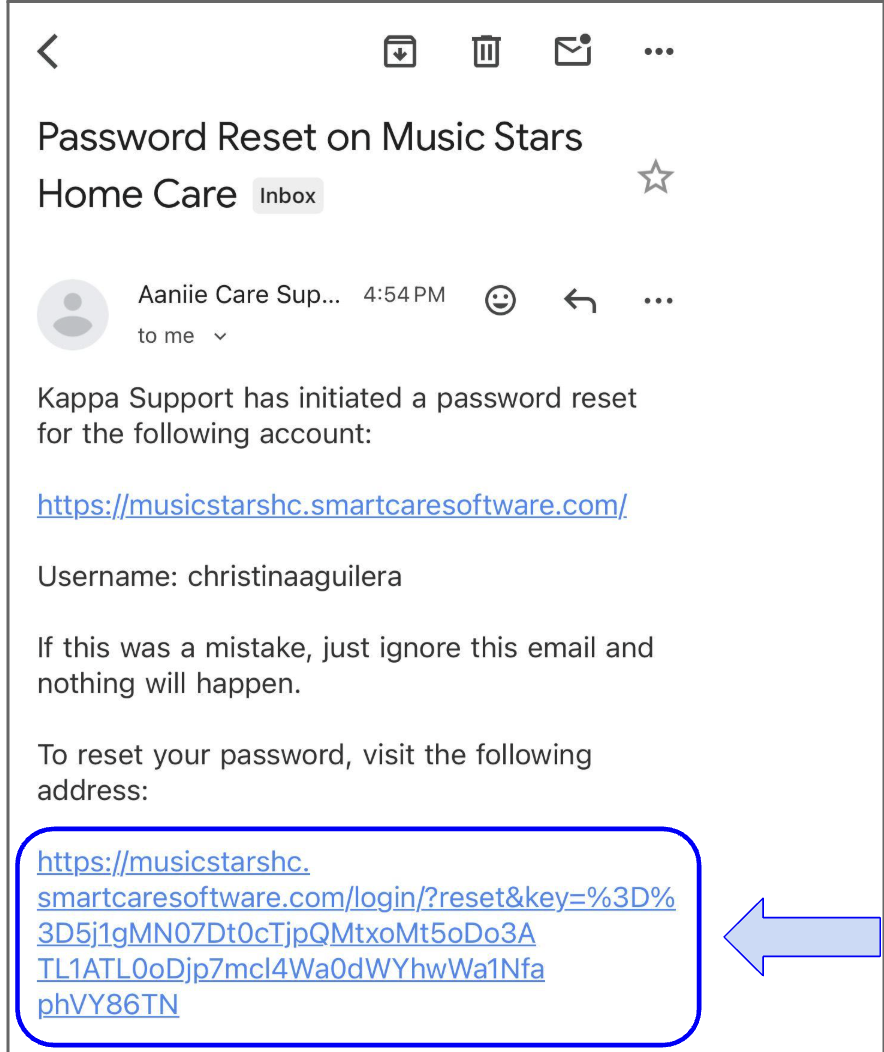
The screenshot shows an email titled "Password Reset" from Aaniie Care Support. The caregiver should open this email and select the password reset link to create their password.
Troubleshooting
If you do not receive the password reset email:
- Check your Spam folder.
- Check your Junk folder.
- Contact your agency manager for assistance.
Step 3: Open the App
- Launch The SMARTcare App on your mobile device.
- When prompted, allow notifications.
Why Notifications Matter
Notifications allow your agency to send important information through the app, including:
- Schedule updates
- Shift notifications
- Messages from managers
- Other agency communications
The screenshot shows the notification permission screen asking if SMARTcare may send notifications. Select Allow to ensure you receive agency communications.
Step 4: Enter Your Portal and Username
The login screen requires two pieces of information:
Agency Portal
Your agency will provide your portal name.
The portal is the first portion of your agency's Aaniie website address.
Example:
Agency URL:
https://www.agencyportal.smartcaresoftware.com
Portal:
agencyportal
Username
Your username is generally:
First Name + Last Name
- All lowercase
- No spaces
Example:
Employee Name:
Christina Aguilera
Username:
christinaaguilera
Your username is based on the information your agency used when creating your account.
You may also find your username in your User Registration Email.
The screenshot displays the Agency Portal field and Username field within the SMARTcare App login screen. Caregivers must complete both fields before continuing.
Step 5: Verify Your Information
Before continuing:
- Select the eyeball icon next to the Portal field.
- Select the eyeball icon next to the Username field.
- Verify everything is spelled correctly.
Important
Many login issues occur because the portal or username was entered incorrectly.
Using the eyeball icon allows you to see exactly what was entered before proceeding.
Step 6: Save and Continue
- Select the floppy disk icon.
- The app will save your portal and username.
- You will be taken to the password screen.
Screenshot Description
The screenshot highlights the floppy disk icon used to save the Portal and Username information before proceeding to password entry.
Step 7: Enter Your Password
- Enter the password you created during the password reset process.
- Select the eyeball icon if you want to view the password while typing.
- Tap the arrow icon to sign in.
Screenshot Description
The screenshot shows the password entry screen. The eyeball icon can be used to reveal the password and verify it was typed correctly before signing in.
Troubleshooting Login Errors
If you receive an error message:
- Return to the previous screen.
- Verify your Agency Portal.
- Verify your Username.
- Use the eyeball icons to confirm all information was entered correctly.
- Try signing in again.
Most Common Causes
- Incorrect portal name
- Misspelled username
- Incorrect password
- Password was not successfully created
If problems continue, contact your agency manager.
Quick Checklist
☐ Install The SMARTcare App
☐ Create your password using the password reset email
☐ Allow notifications
☐ Enter your Agency Portal
☐ Enter your Username
☐ Verify Portal and Username using the eyeball icons
☐ Save using the floppy disk icon
☐ Enter your password
☐ Log in successfully
Related Articles
Handout: Client App Install, Login & User Guide
Please download the word document to add your agency URL and make edits based on your agency settings. Email or print this document to give to clients and/or family members. To view the login & user guide for the web version family portal, click ...Manager Facing - Aaniie Caregiver App Training Guide
Aaniie Caregiver App Training Guide for Managers Overview This guide is designed to help agency managers train caregivers on how to use the Aaniie Caregiver App. By following this training process, caregivers will gain hands-on experience with the ...Handout: Client or Family Portal Login and User Guide
Please download the word document to add your agency URL and make edits based on your agency settings. Email or print this document to give to clients and/or family members. To view and download the mobile app handout for clients, click here. Family ...Mobile App Caregiver User Guide
Aaniie Mobile App Caregiver User Guide Overview The Aaniie Mobile App helps you manage your daily schedule, clock in and out of visits, communicate with your agency, and access important information—all from your mobile device. The sections below ...Enable Punchcard edits up to 30 days - Caregiver Info
Enable Punchcard edits up to 30 days - Caregiver Info Ability for caregivers to view and edit punches, shift notes, complete tasks, and collect signatures up to 30 days in the past. Clocking out/in Process - Multiple shift prompts In the Punchcard ...