Custom Alerts
Custom Alerts can be easily created within the Aaniie system. These can be set to be sent out at various recurring intervals. To set up custom alerts, follow the instructions below.
1. Navigate to the Custom Alerts section through Menu>Communications>Custom Alerts.
2. On the Custom Alerts page, begin creating a custom alert by clicking on Create Alert on the top bar.
3. Enter the recipients of the alert in the Alert Recipients field. These can be staff, applicants, clients, or client representatives. You can select all of any of these groups as well. Alert Settings allows you to select if the alert is replying to someone specific and to create a subject line. It also is where you select which methods you would like the alert to be sent out through, including Email, Text, Call, and Aaniie Notice. Time and Date Settings allow you to set the time of the alert, the recurrence, and the date of the first alert if it is recurring. Once you have filled out all 3 of these sections, click Save to send out the alert.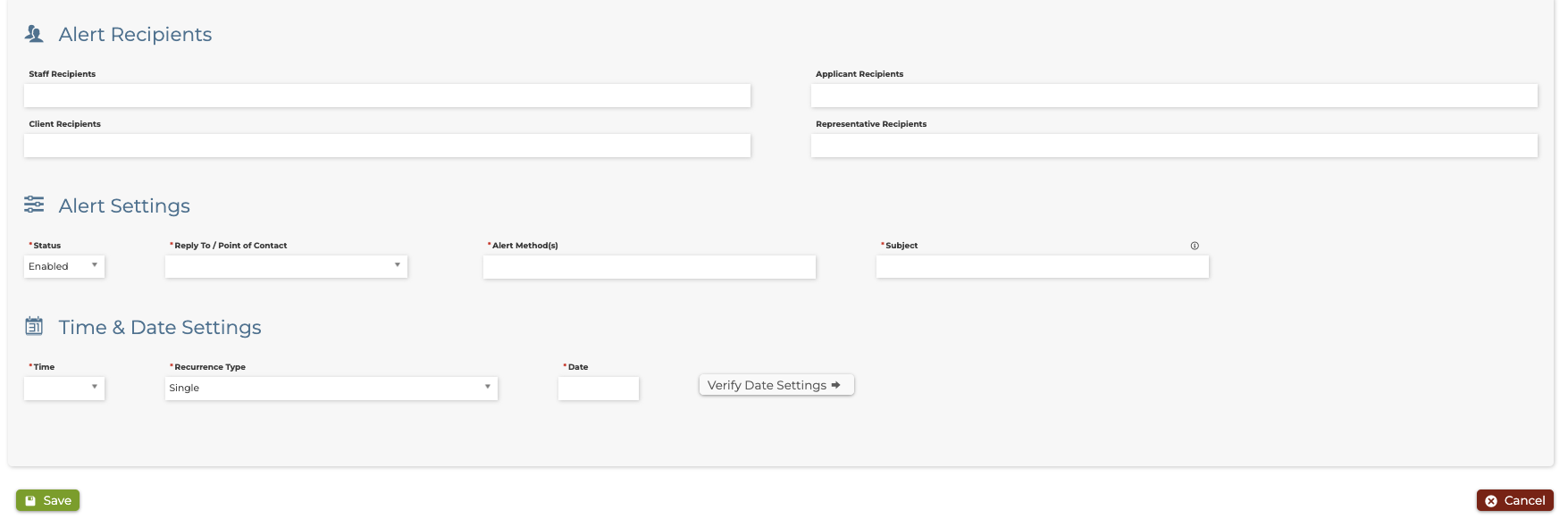
4. You can view a log of the alerts by selecting the alert and scrolling down through the Alerts Logs section.